
How to Customize Your Data Grid in DigiPan v8
DigiPan v8’s data grid, powered by AG Grid, lets you tailor the display of tax lien, tax deed, and foreclosure auction data to suit your research needs. Resize, reorder, or pin columns to focus on key information like parcel IDs, auction dates, or minimum bids. This guide shows you how to personalize the grid for faster, more efficient due diligence.
Why Customize the Data Grid?
- Work Your Way: Arrange columns to match your research workflow.
- Stay Focused: Pin important columns to keep them visible while scrolling.
- Maximize Efficiency: Resize columns to view more data at once.
Steps to Customize the Data Grid
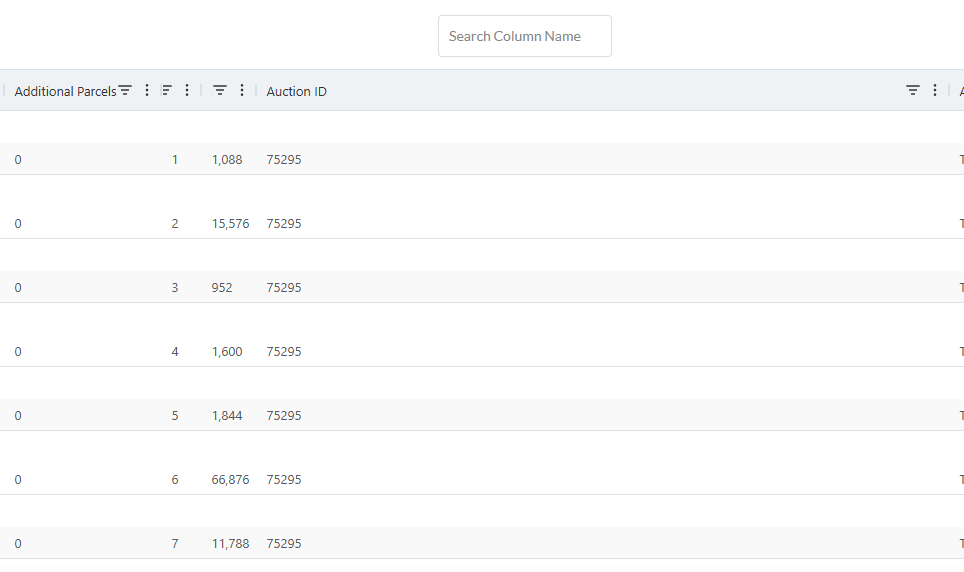
- Access the Data Grid
Go to the Primary Market Summary in DigiPan v8 to view the data grid with all current-year auctions.
Tip: If you’re new, start with the default view to get familiar with available columns. - Resize Columns
- Hover over the edge of a column header (e.g., “Parcel ID” or “Auction Date”) until a double-arrow cursor appears.
- Click and drag left or right to adjust the column width.
- Release to set the new size. Wider columns are great for viewing detailed fields like “Property Description.”
- Reorder Columns
- Click and hold a column header (e.g., “Minimum Bid”).
- Drag it left or right to a new position (e.g., move “Minimum Bid” next to “Auction Type”).
- Release to drop the column in place. Arrange columns to prioritize data you check most often.
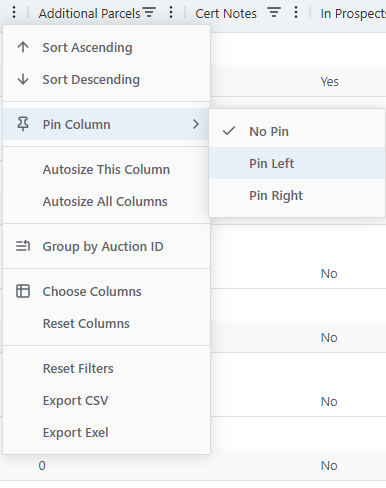
- Pin Columns
- Right-click a column header (e.g., “Parcel ID”).
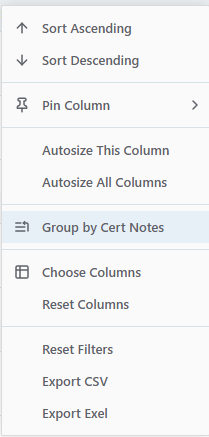
- Select Pin Column > Left or Right from the context menu.
- Pinned columns stay visible while you scroll horizontally through the grid, ideal for keeping key fields like parcel IDs or auction types in view.
- To unpin, right-click and select Unpin Column.
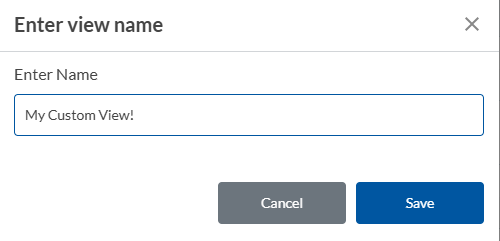
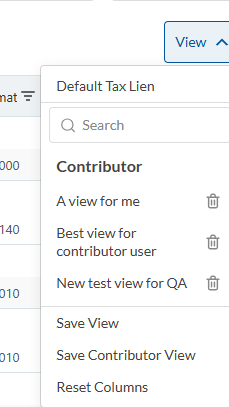
- Save Your Layout
After customizing, click the Save Grid Layout button at the top of the grid to store your settings. Your layout will load automatically on your next visit.
Note: This feature requires a DigiPan v8 account. Free trial users can save up to one layout. - Reset to Default
If you want to start over, click the Reset Grid button to restore the default column sizes, order, and pinning.
Tips for Success
- Prioritize Key Columns: Move frequently used columns (e.g., “Auction Date” or “County”) to the left for quick access.
- Optimize for Your Screen: Resize columns to fit your monitor size, especially for wide fields like “Property Description.”
- Combine with Filters: Customize your grid after filtering data to focus on specific auctions. See .
Troubleshooting
- Columns Not Saving? Ensure you’re logged in and have clicked Save Grid Layout. Free trial users may need to upgrade for multiple layout saves.
- Can’t See a Column? Check if it’s hidden by scrolling or if it was accidentally removed. Use Reset Grid to restore all columns.
- Pinning Issues? Unpin all columns and re-pin in your preferred order to avoid overlaps.
Next Steps
- Learn how to filter your customized grid for precise research. See .
- Export your tailored view to share with your team. Check out .