
How to Filter Auction Data in DigiPan v8 Data Grid
The DigiPan v8 data grid, powered by AG Grid, makes it easy to narrow down tax lien, tax deed, and foreclosure auction data to find exactly what you need. With powerful filtering, you can focus on specific parcels or certificates based on criteria like auction type, location, or minimum bid. Follow these steps to apply filters and streamline your research.
Why Use Filters?
Save Time: Quickly isolate relevant auctions from thousands of records.
Targeted Research: Focus on specific auction types (e.g., tax liens) or regions.
Flexible Options: Combine multiple filters for precise results.
Steps to Filter Auction Data
Access the Data Grid
Navigate to the Primary Market Summary in DigiPan v8. The data grid displays all current-year auctions, including tax lien, tax deed, and foreclosure data.
Tip: Use the search bar at the top to jump to the Primary Market Summary if you’re not already there.
Locate the Filter Icon
Hover over a column header (e.g., “Auction Type,” “County,” or “Minimum Bid”). A small filter icon (three horizontal lines) appears to the right of the header.
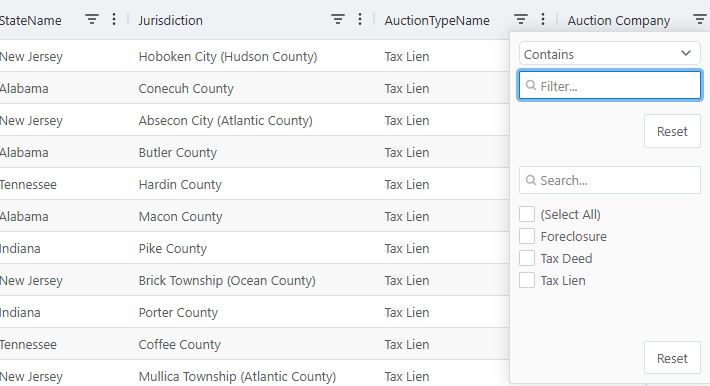
Open the Filter Menu
Click the filter icon. A dropdown menu appears with filter options specific to the column’s data type. For example:
Auction Type: Checkboxes for “Tax Lien,” “Tax Deed,” or “Foreclosure.”
Minimum Bid: Numeric range sliders or input fields.
County: Text search or a list of counties.
Apply a Filter
For Auction Type, check the box for “Tax Lien” to show only tax lien auctions.
For Jurisdiction, type a county name (e.g., “Orange”) to filter to that region.
Click OK or press Enter to apply the filter. The grid updates instantly to show only matching records.
Combine Multiple Filters
Repeat steps 3–4 for additional columns to refine your results further. For example, filter by “Tax Lien” in Auction Type and “Orange” in County to see tax lien auctions in Orange County only.
Note: The grid displays the number of filtered records at the bottom.
Clear Filters
To reset, click the filter icon in any column and select Clear Filter. Alternatively, use the Reset Filters button at the top of the grid to clear all filters at once.
[Insert screenshot of Reset Filters button]
Tips for Success
Use Quick Filters: Type keywords (e.g., “foreclosure”) in the grid’s search bar for a global filter across all columns.
Save Time with Presets: Save frequently used filter combinations by clicking the Save Filter option in the filter menu (available for premium users).
Check Your Data: Ensure your filters match your research goals to avoid missing relevant auctions.
Troubleshooting
No Results? Check if your filter criteria are too narrow (e.g., a high minimum bid in a small county). Widen the range or clear one filter.
Filter Not Applying? Refresh the grid by clicking the Refresh button or reloading the page.
Next Steps
Export your filtered data to Excel for offline analysis. See How to Export Auction Data from DigiPan v8.
Customize your grid view to prioritize key columns. Learn how in How to Customize Your Data Grid in DigiPan v8.